Screenshots
Description
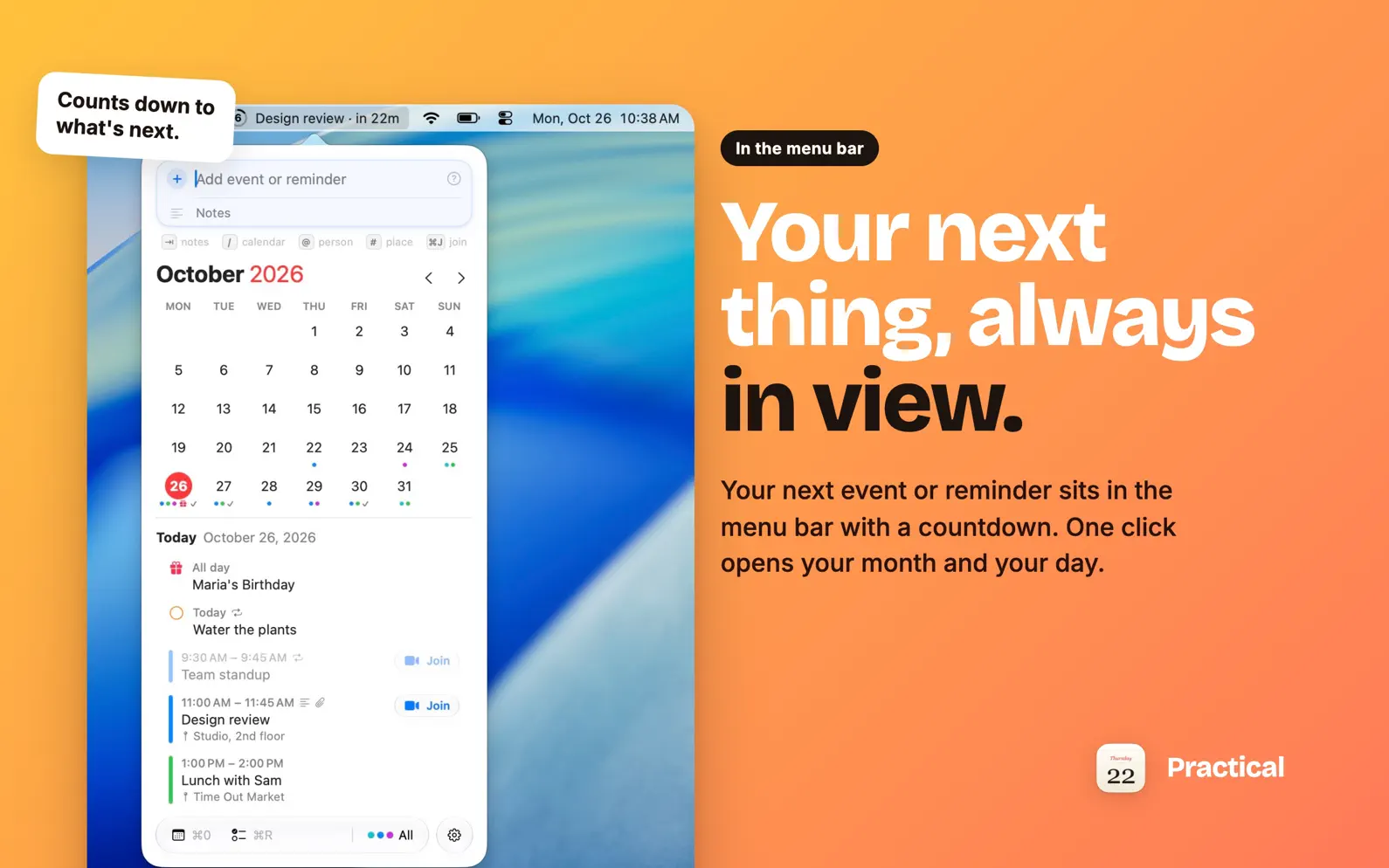
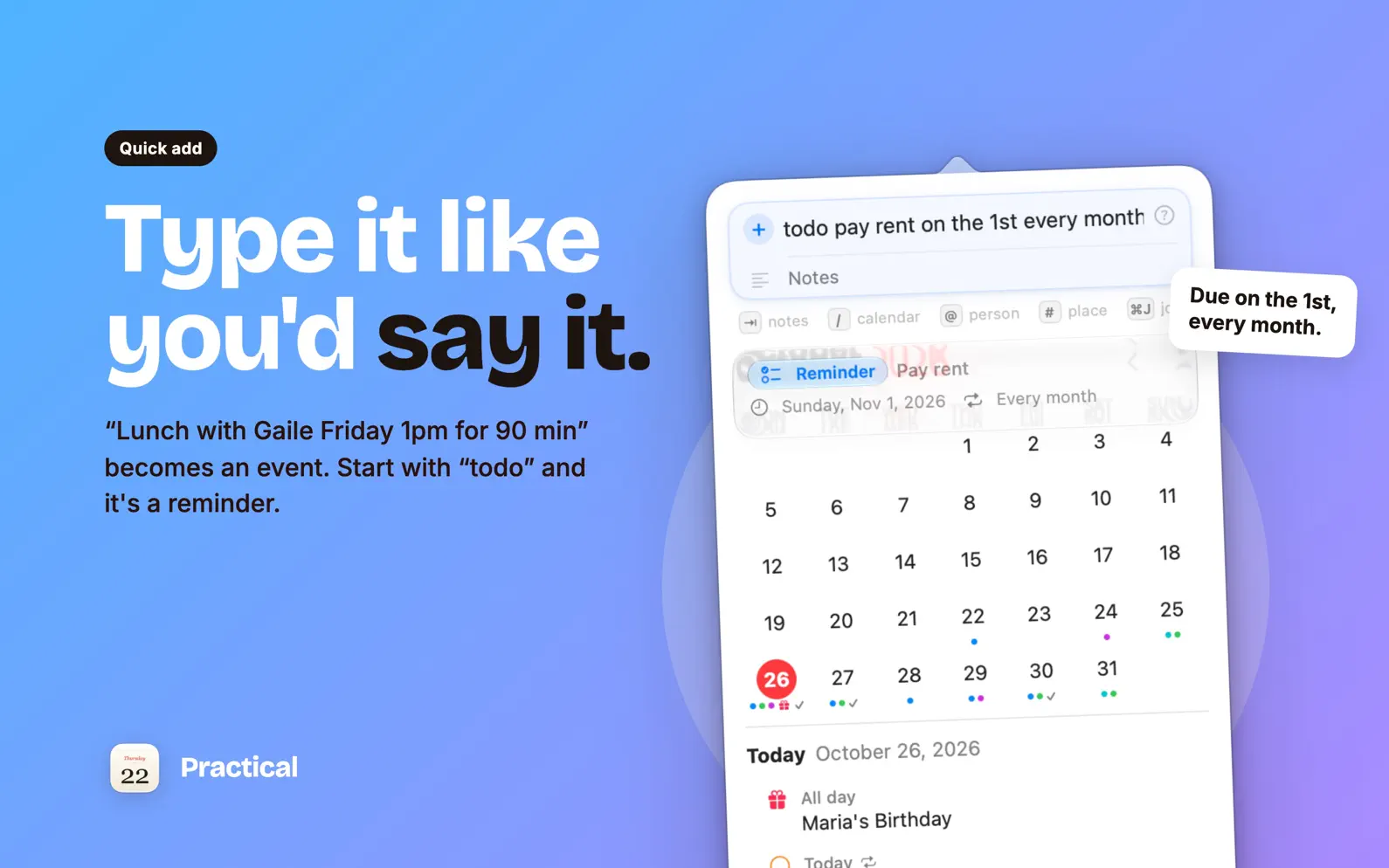
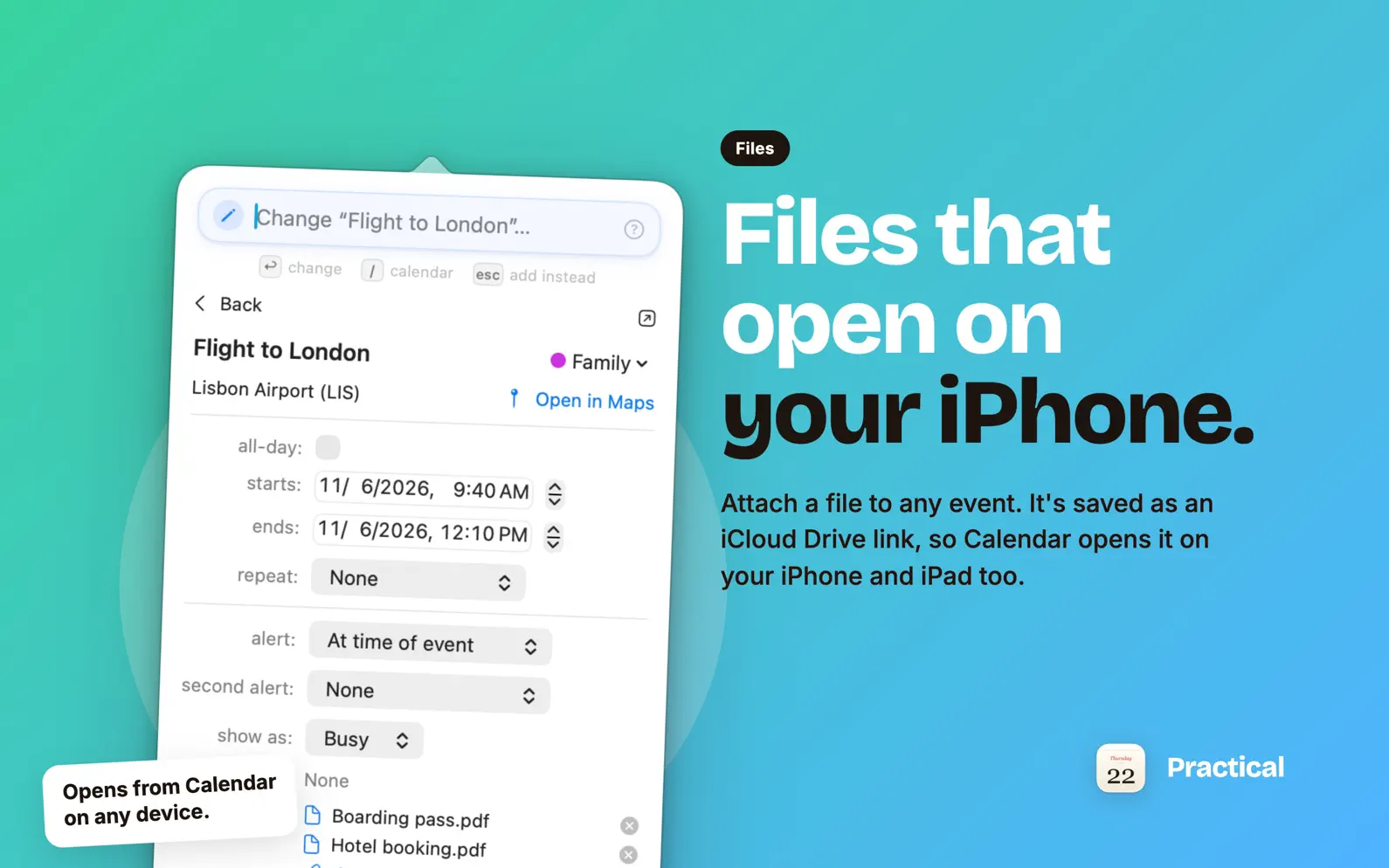
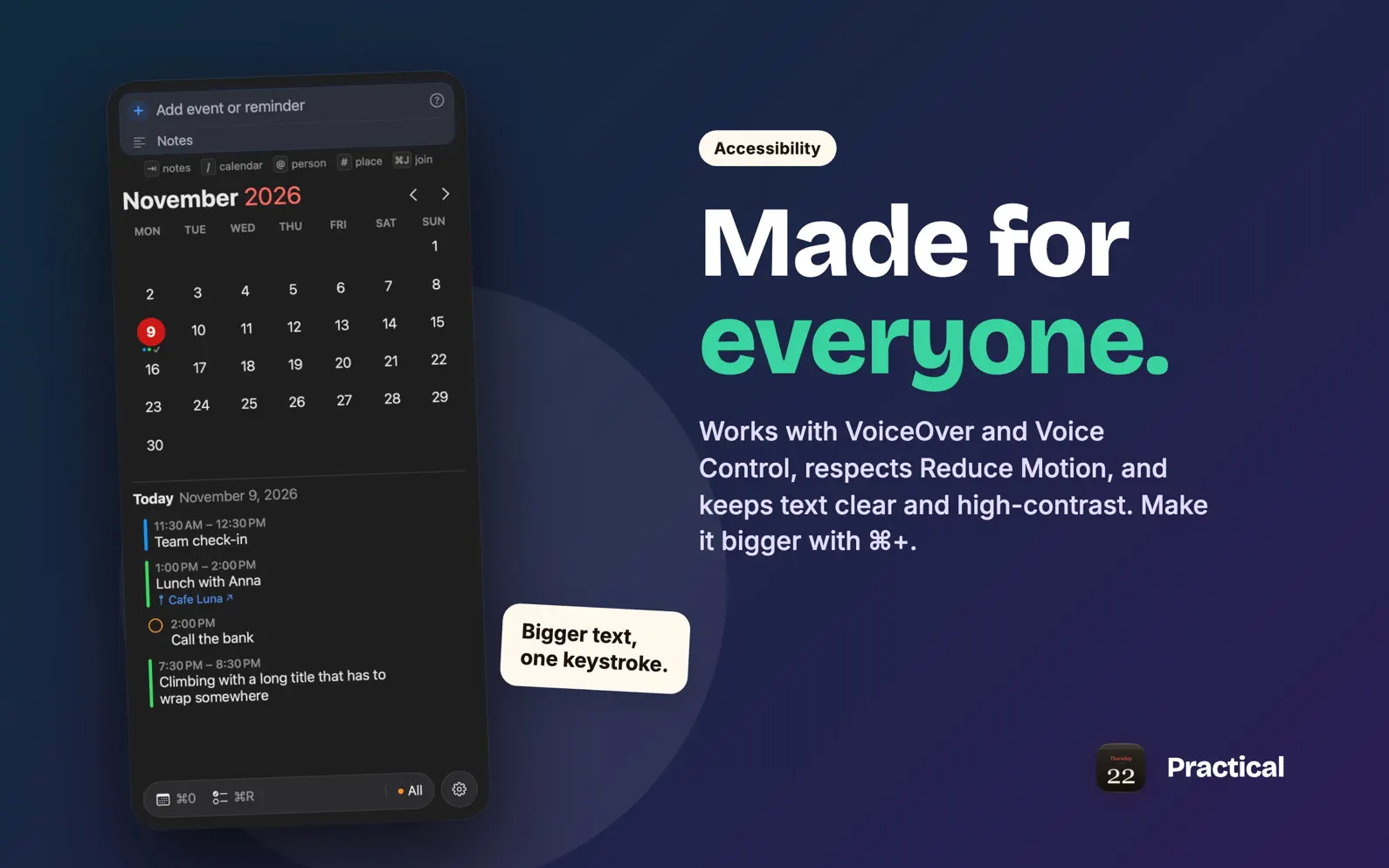
Practical sits on top of the Calendar and Reminders already on your Mac. Your next event or reminder is in the menu bar, the month and your day are one click away, and changes are typed the way you'd say them. CHANGE ANYTHING BY TYPING WHAT'S DIFFERENT Open an event or reminder and type: "push it to Friday" keeps the time, "at 4" keeps the day, "for 2 hours" keeps the start, "every other week" sets the repeat, "move to Home" switches calendars. A card shows each change before you press Return, and Undo is right there. SHARE A SCREENSHOT, GET THE EVENT A ticket, an invite, a poster: share the screenshot to Practical, paste it with ⌘V or drag it in, and quick add fills in the event it shows, with the link from its QR code, ready for Return. It's read on your Mac and never uploaded. ADD BY TYPING A SENTENCE "Lunch with Gaile Friday 1pm for 90 min", "Dentist tomorrow 3pm alert 1 hour before", "todo pay rent every month". Pick a calendar or list with /, link a contact with @, and a place with # so a reminder goes off when you arrive or leave. FILES THAT OPEN ON YOUR IPHONE Attach the boarding pass to the flight or the contract to the meeting. Practical saves it as an iCloud Drive link in the notes, so it opens from Calendar and Reminders on your iPhone and iPad too. THE DAYS THAT SNEAK UP ON YOU A small calendar of its own: when the clocks change, to the minute; Mother's and Father's Day on your country's date; New Year and the solstices. It skips anything your holiday calendar already shows. AND THE REST • Calendar groups (Work, Home) that a Focus can switch for you • Time zones the way Calendar does them • Shortcuts actions and Siri: "What's next in Practical?" • Bigger text when you want it: Settings or ⌘+ and ⌘− make the text, calendar and popover grow • Works with VoiceOver, Voice Control and Reduce Motion, with clear, high-contrast text in light and dark • A Join button in the menu bar 15 minutes before a video call (or ⌘J); ⌥⌘N opens Practical anywhere • The menu bar your way: look ahead from the next hour to the next 7 days, show the full title, a short one or just the time, and hide one event to see the one after it • Keyboard all the way: ⌘↓ steps into the day's list, Return opens an item, Esc goes back • A missed reminder stays on today, in red, until it's done • Click a birthday to send a happy birthday by Messages or Mail PRIVATE BY DESIGN Everything stays in Apple's own apps, so every account you already use works (iCloud, Google, Exchange). No account, no analytics: your calendars, reminders and contacts never leave your Mac. Free to try for 14 days. Then one purchase unlocks it for good, with free updates. After the trial, the menu bar keeps showing what's next.
Release Notes
App Details
| Size | 4.1 MB |
|---|---|
| Initial release | |
| Price | |
| Platforms | Mac |
| Category | Productivity |
| Website | david-alves.com/practical |
| Compatibility | |
|---|---|
| Mac | Requires macOS 14.0 or later. |
More By This Developer
Similar Apps
App's data is regularly updated.
Last update: