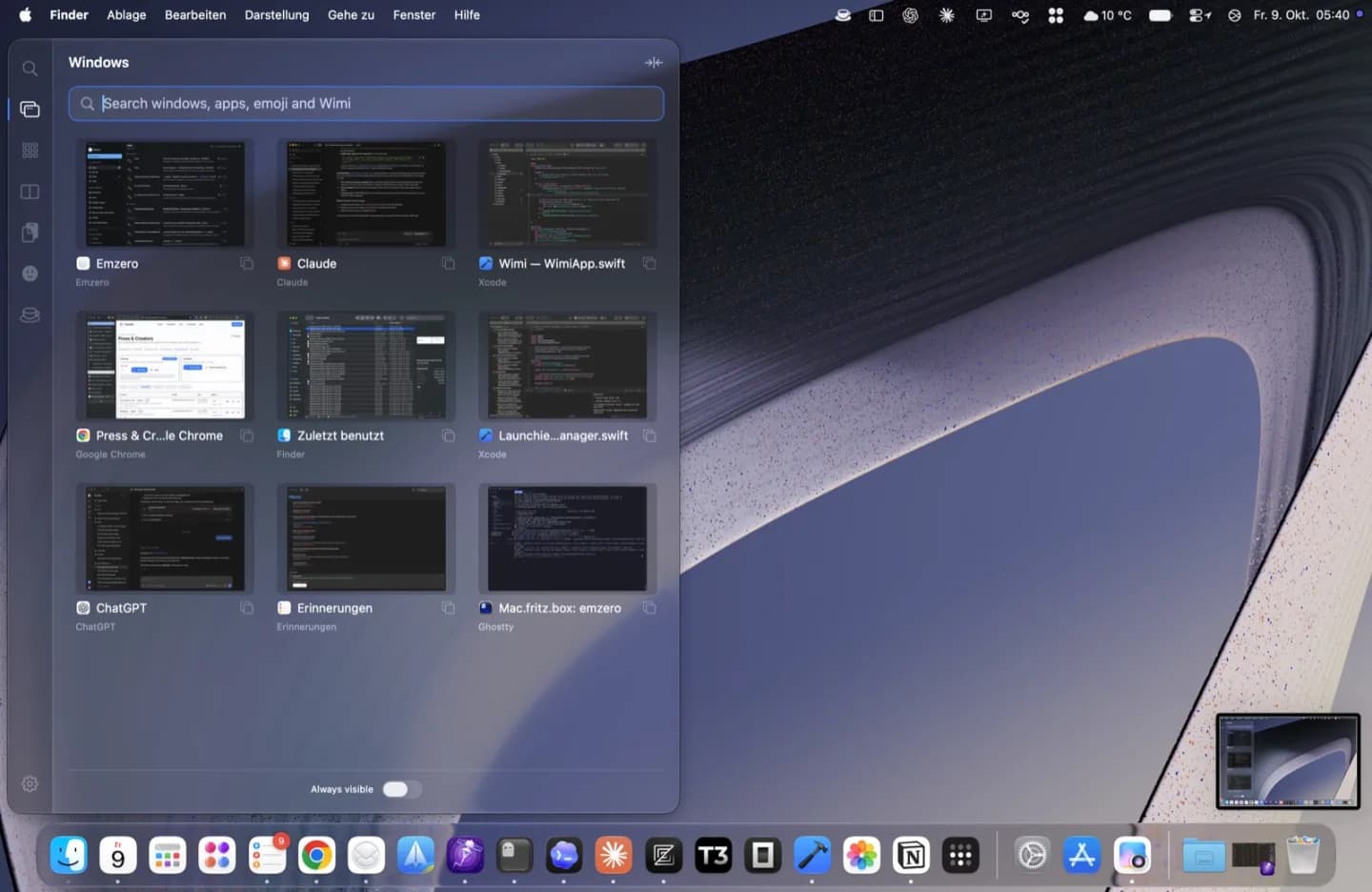
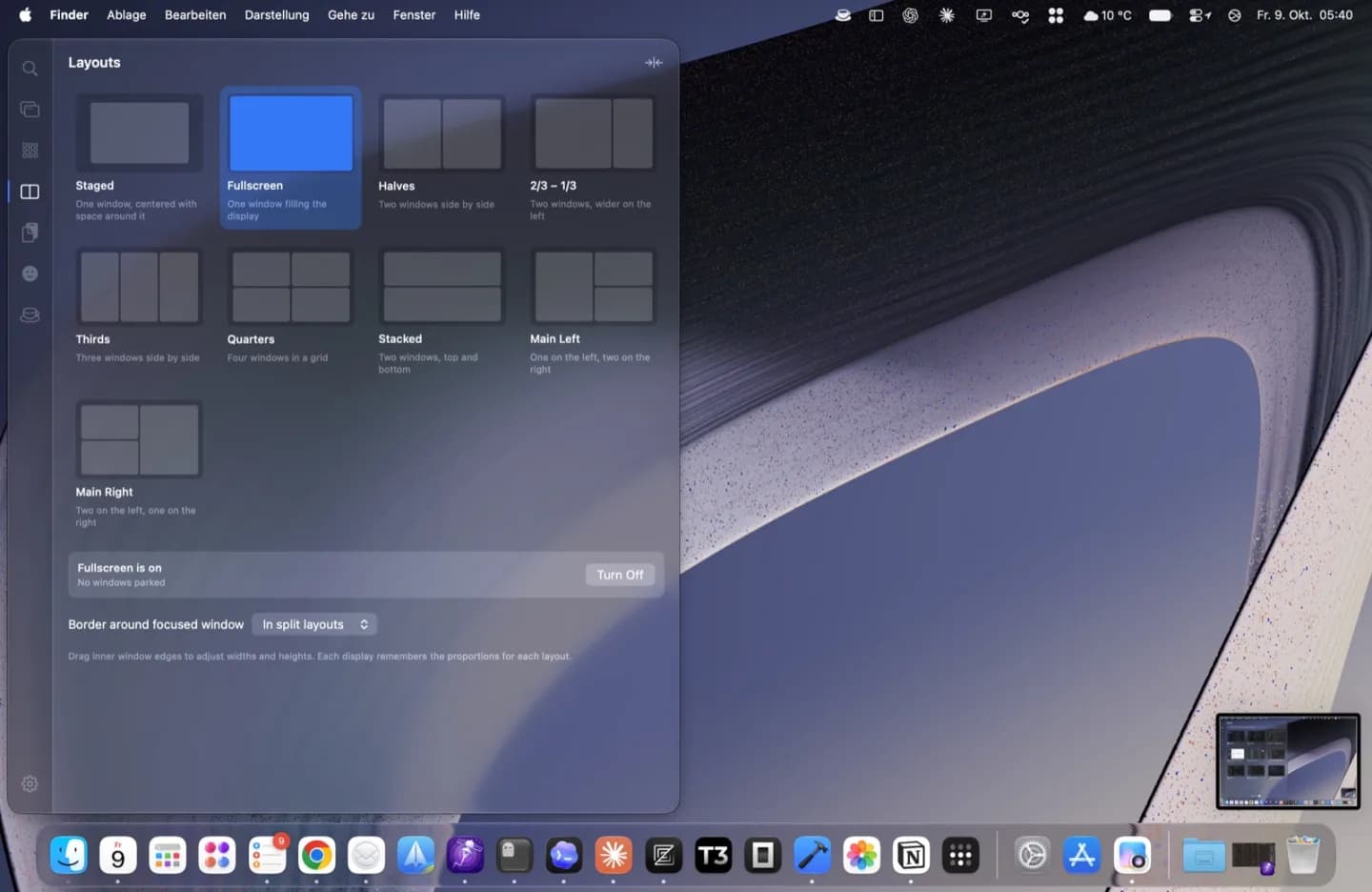
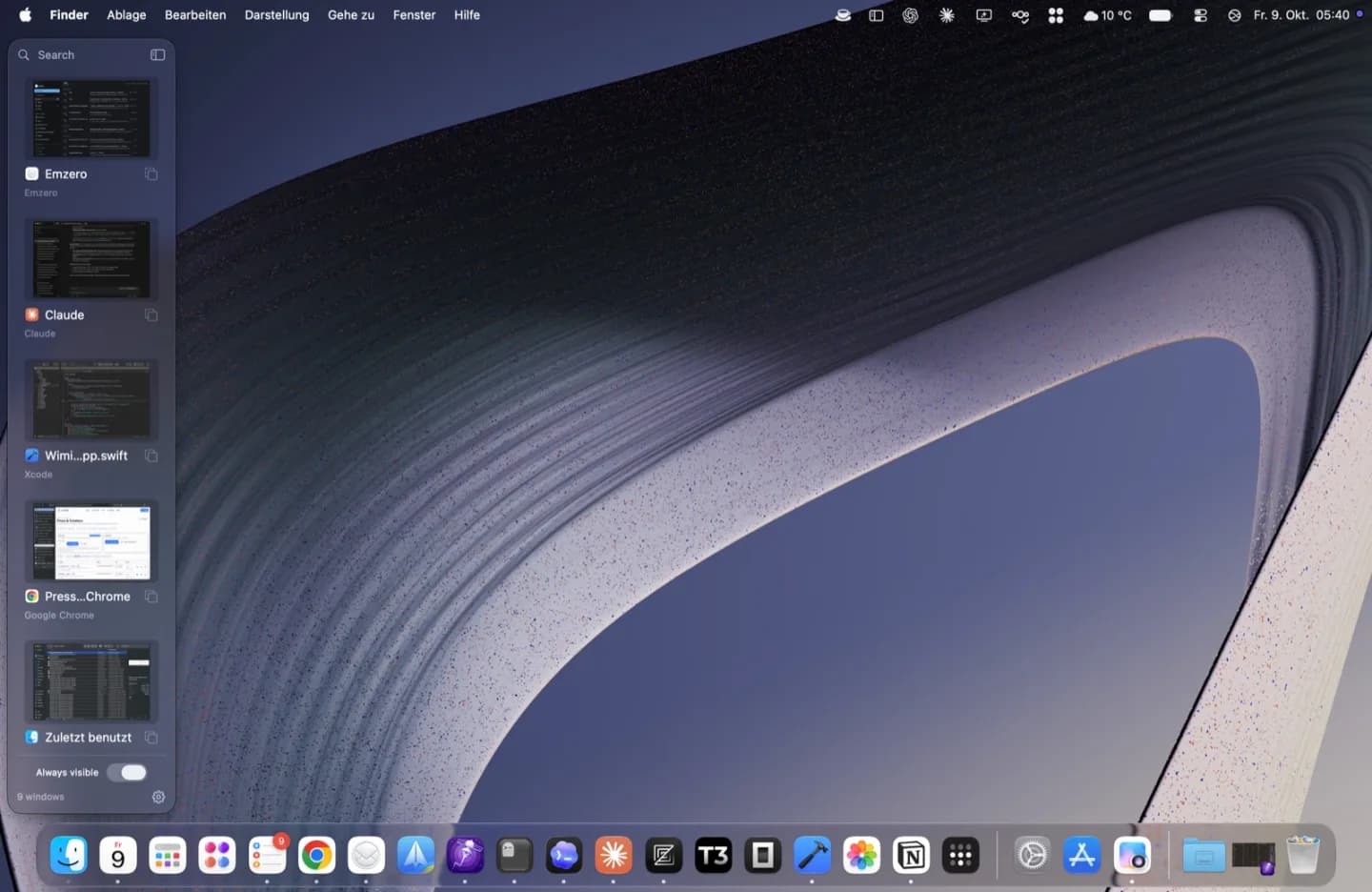
Wimi is a native macOS window manager with automatic tiling and visual controls. Pick a layout and Wimi keeps your windows in it. Use live previews in the screen-edge drawer to switch windows or drag them into place, and resize neighboring windows together. No config files or required keyboard shortcuts. The drawer, live previews, Option-Tab switcher, app launcher and basic layouts are free. Pro adds advanced layouts, workspaces and optional local clipboard history. Every download includes 30 days of Pro with no account or card; free features keep working afterward. Pro is a one-time US$19.99 plus tax for two Macs. Requires macOS 14 or later. Supports Apple silicon and Intel.
| Initial release | |
|---|---|
| Price | Free |
| Platforms | Mac |
| Category | Productivity |
| Website | getwimi.app |
A new Scrolling layout you can move with your fingers, and a workspace bar you can shape to your liking. ### New - Scrolling layout (Pro): windows sit side by side as columns on a strip wider than the display, always starting at a window's left edge, with the next one peeking in on the right. Scrolling moves the whole strip in one smooth motion that follows quick key presses without waiting. Hyper ← / → and clicking a window scroll it into view; Hyper ⇧ ← / → moves a column along it, and you can drag a window between columns or onto another display's strip. New windows open next to the focused one. Resize a window to change its column's width, or use Column wider / narrower (⅓, ½, ⅔, full) from search or a shortcut you assign. - Hold Hyper and scroll over the Scrolling layout to move the strip with your fingers; let go and it glides on and settles at a window's edge. A mouse wheel moves one window per notch. Optionally, a three-finger swipe does the same without a key. Trackpad, mouse and swipe speeds are in Settings → Windows → Scrolling layout. - Hyper ⇧ + arrow keys now send the focused window to the next display in that direction once there is no other window that way in its layout. It takes the nearest empty slot of a layout there, or floats at the same spot on a display without one. ### Improved - Switching to Scrolling keeps your windows' sizes: a window comes in as wide as it was in the previous layout, and widths and column order you set in Scrolling come back when you return to it from another layout. Choosing Scrolling again while it's active still sets every column to half. - The workspace bar lists a Scrolling display's windows in the order of its columns, and dragging a window along the bar moves its column on the strip. - The workspace bar can center its windows (Alignment in the bar's right-click menu, or Settings → Windows → Workspaces). - The workspace bar's options open with a right-click anywhere on the bar, replacing the ⋯ button. The workspace numbers, the layout menu and the clock can each be hidden (right-click → Show, or Settings). - Liquid Glass in the workspace bar is now see-through glass that bends the desktop at its edges; on macOS 27 it looked the same as frosted Glass. - Layouts feel quicker: switching layouts several times in a row goes straight to the last one, windows of all apps start sliding together, and Hyper arrow presses made in quick succession are no longer dropped. ### Fixes - Chrome and Firefox windows could be seen flying to the screen corner when another window took their place in a layout.